Getting started with Abobi
From audio files to an M4B audiobook with chapters, cover and description — step by step.
1. Add your files
Drag audio files or a whole book folder into the window — or click Add, or press ⌘O. Abobi reads MP3, M4A, M4B, AAC, WAV, AIFF, FLAC and CAF, and takes just the sound from MP4, MOV and M4V videos.
Files are ordered by name. The arrows on the toolbar move the selected files, and the menu next to them sorts by name or track number. Abobi picks up the title, author and cover from the files’ tags when they have them.
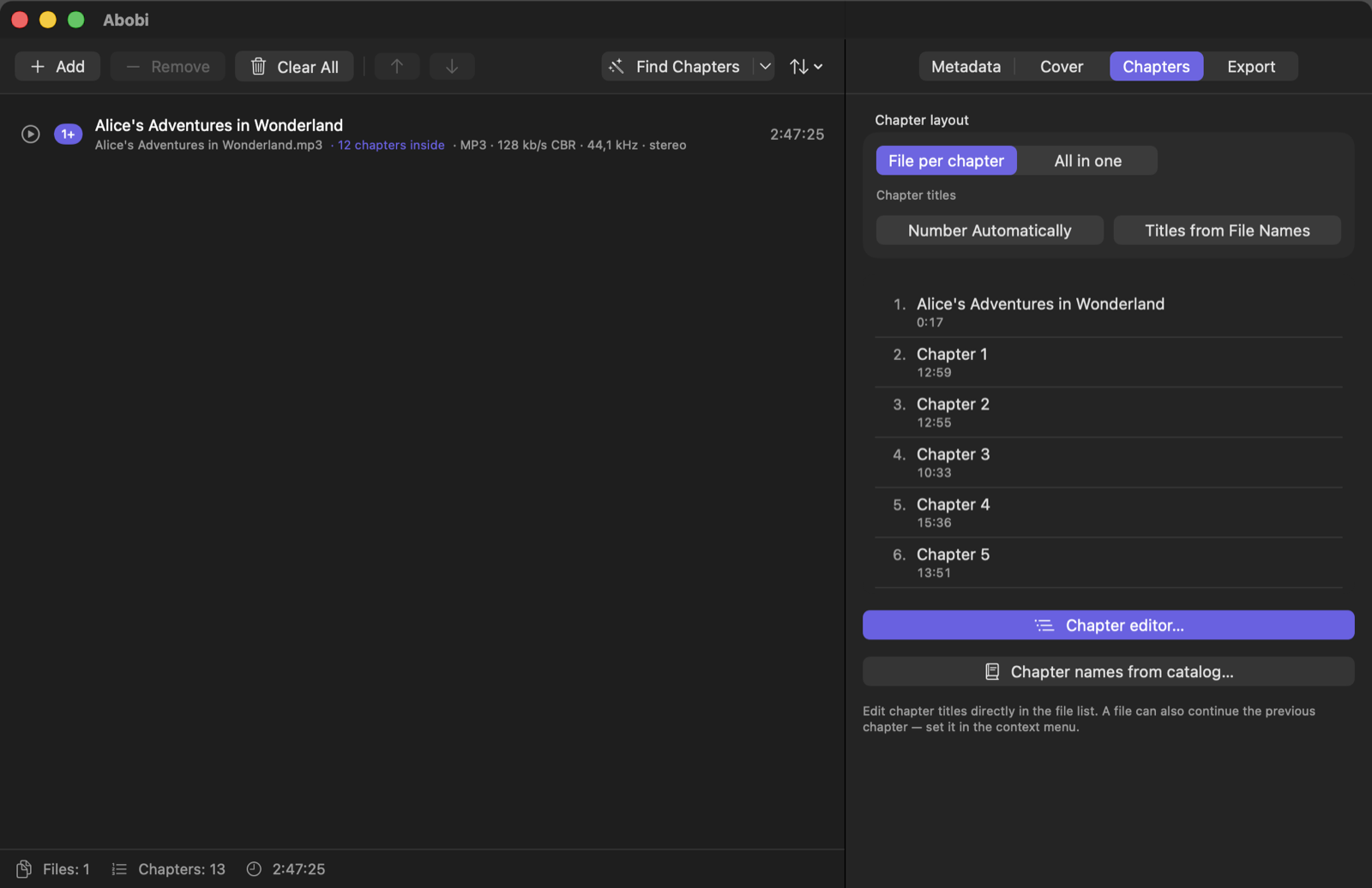
2. Find chapters
Click Find Chapters on the toolbar above the list. Abobi suggests how to split the book into chapters — a starting point for you to review, not a final verdict. The arrow next to the button opens a menu with modes:
| Fast | The fastest. Good for a quick try or simple recordings. |
| Balanced | Accurate and still quick. Good for everyday use. |
| Max | The most accurate. Takes the longest. |
The same menu has Find chapters after adding files: when it’s on, Abobi starts by itself as soon as you drop a new book into an empty window. Adding files to a book that’s already in the list leaves your chapters alone.
Stop interrupts the work and puts the chapters back the way they were.
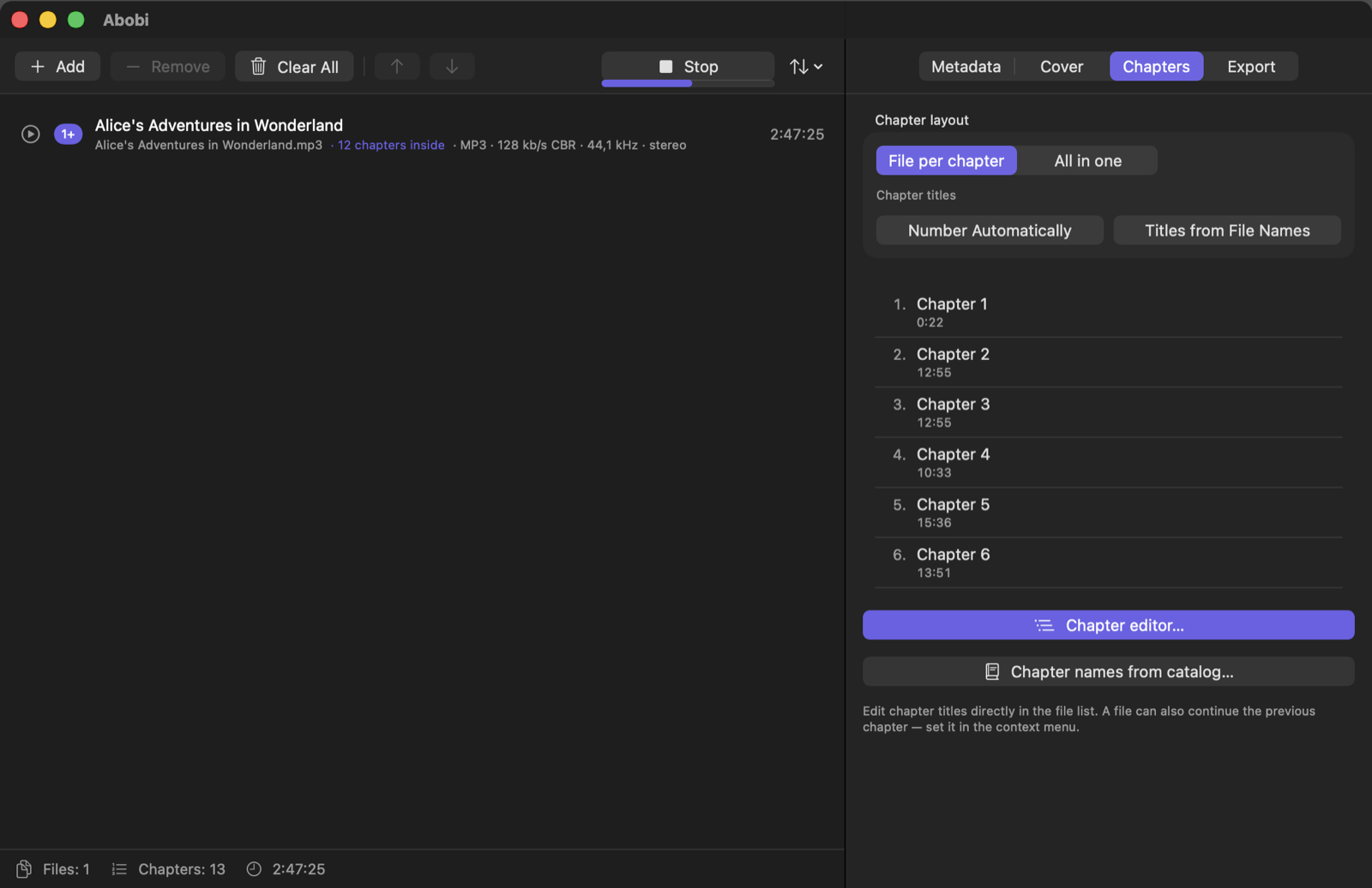
3. Review chapters in the editor
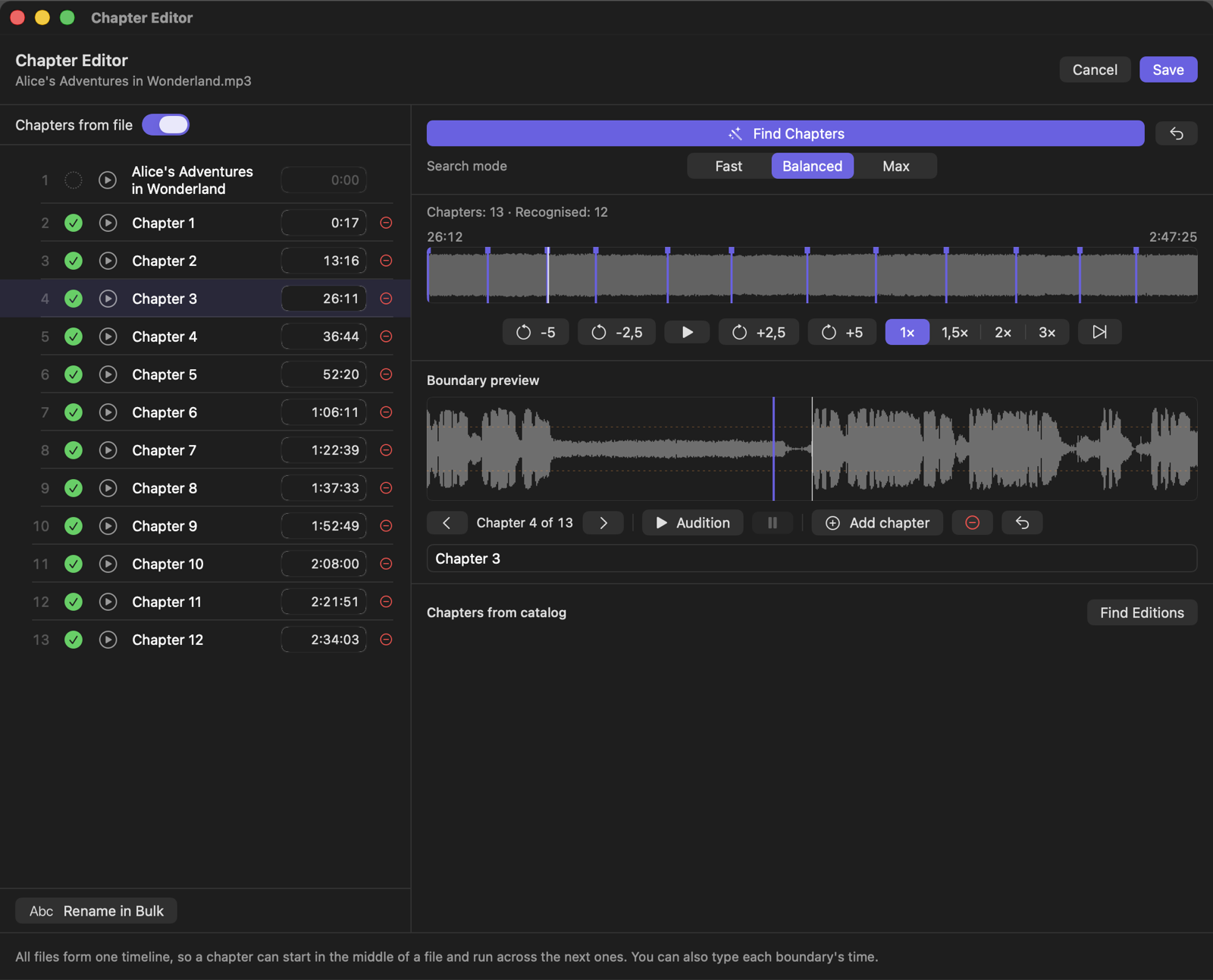
Open Chapter editor… from the Chapters tab or with ⌘K. Each chapter has a mark that shows how sure Abobi is:
- ✓Confirmed — a chapter definitely starts here.
- Not confirmed — that doesn’t mean the boundary is wrong. Have a listen if something seems off.
- ?Worth a look — this may be a split in the middle of a chapter.
- ?Something is missing before it — the chapter is confirmed, but an earlier one wasn’t found. Listen to the previous boundaries.
Clicking a mark switches it between “checked” and “needs a look” — you have the final say.
Listening and adjusting
The ← → keys move between boundaries, and Audition (or the space bar) plays 3 seconds before a boundary and 7 after it. Move a boundary by dragging its marker in the preview or by typing a time in the list. Add chapter places a new boundary at the playhead, and the red minus removes the current one. Rename a chapter in the field under the preview or right in the list; Rename in Bulk replaces text in every title at once.
⌘Z undoes the last boundary change. Save keeps your changes, Cancel restores the chapters from before you opened the editor.
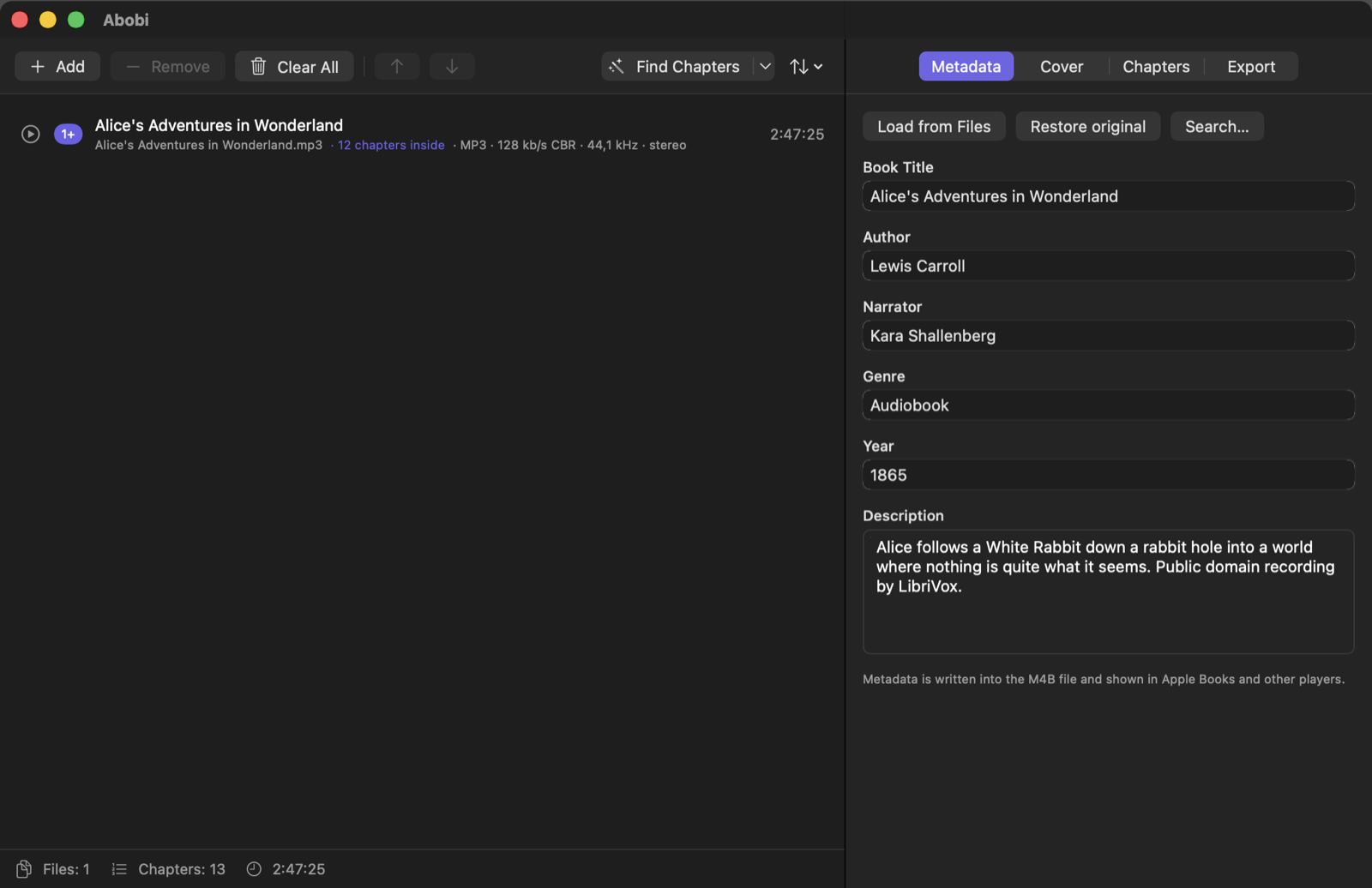
4. Fill in the metadata
In the Metadata tab, enter the title, author, narrator, genre, year and description. Search… looks the book up in online book and audiobook catalogs — just pick the right edition. Only the title and author you typed are sent to the search.
Load from Files takes the details from the tags, and Restore original goes back to what the files had when you added them.
5. Add a cover
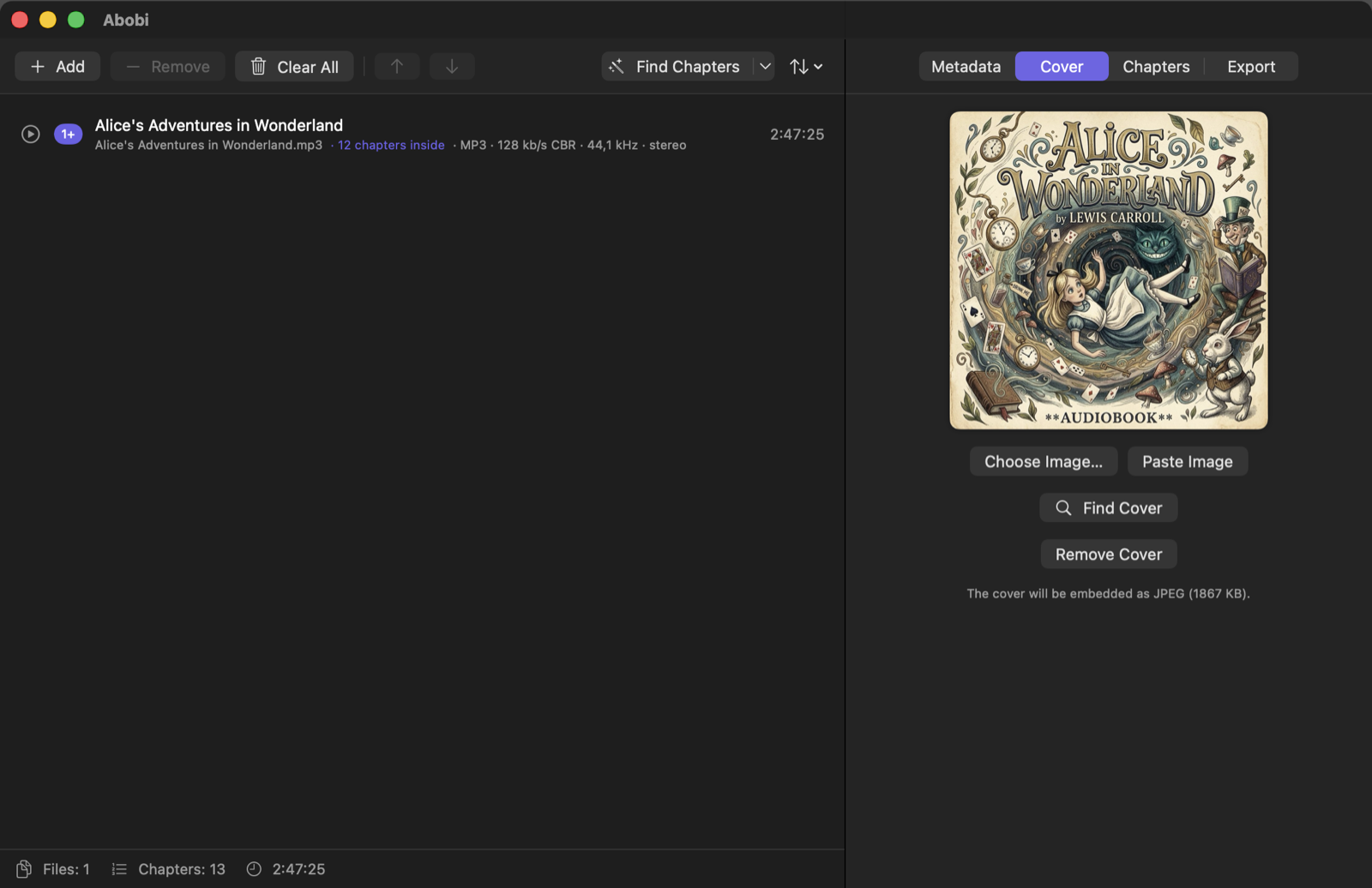
Drag an image onto the cover area, choose one from your disk, or copy it in your browser and click Paste Image. Find Cover opens browser results for the title and author. A square image of at least 1000 pixels looks best.
6. Export the audiobook
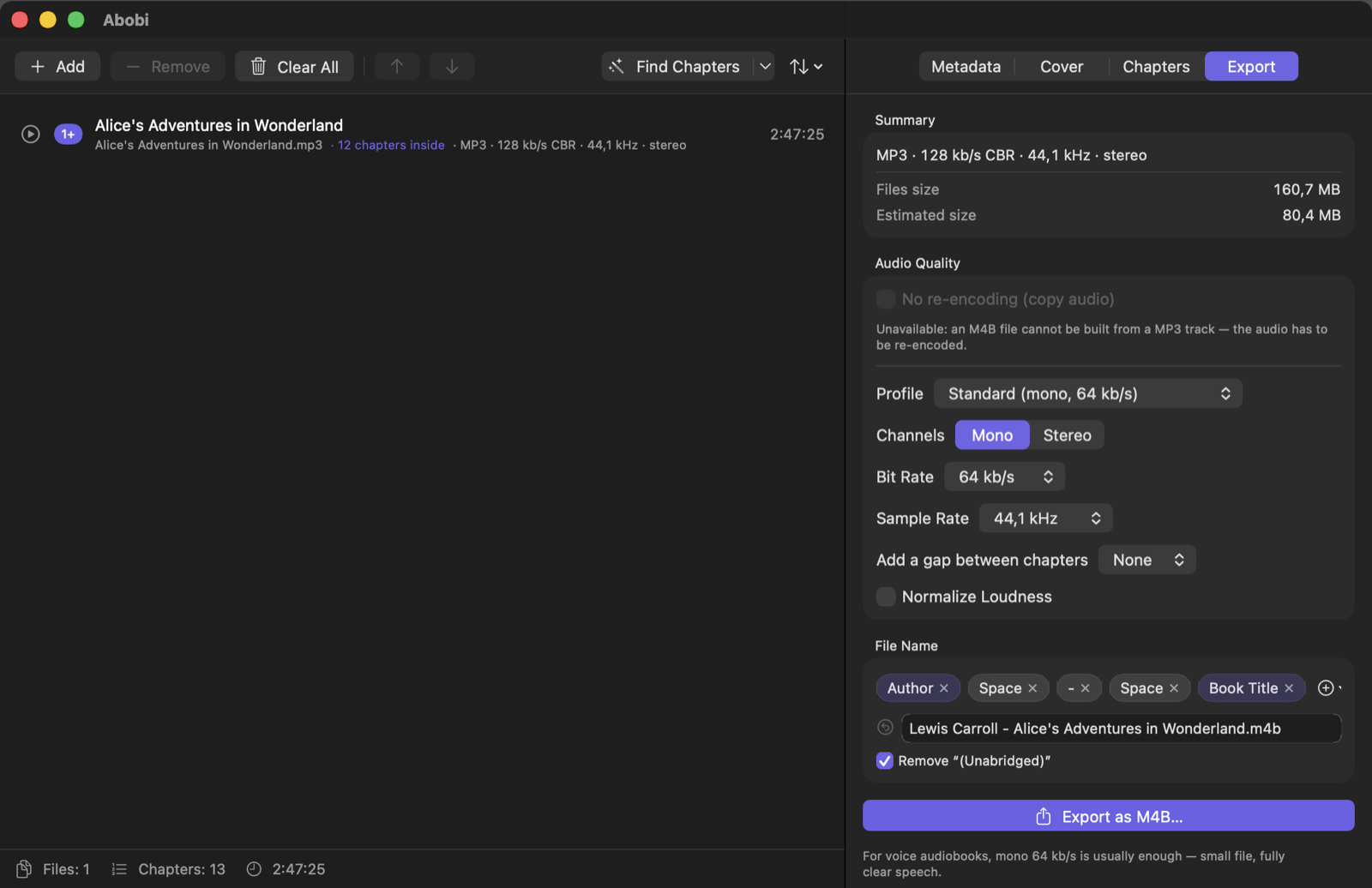
The Export tab starts with a quality that suits your recording. For spoken-word books, mono 64 kb/s is usually plenty — a small file with perfectly clear speech. No re-encoding keeps the original sound and takes seconds when all files share the same AAC or ALAC format.
Build the file name from blocks (author, title, year…). Click Export as M4B… or press ⌘E. Open the finished file in Books with one click, or show it in Finder. You can prepare the next book while one is exporting — it joins the queue.
Shortcuts and handy things
| ⌘O | Add audio files |
| ⌥⌘K | Find chapters |
| ⌘K | Chapter editor |
| ⌘E | Export as M4B |
| ⌘S / ⇧⌘O | Save / open a project — pick up where you left off |
| ⌘N | New project |
Something not working? Help → Report a Problem… opens an email to us with details about the app version and your Mac — you’ll see everything before you send it.
Screenshots show “Alice’s Adventures in Wonderland” in the LibriVox recording (public domain), read by Kara Shallenberg. Questions: support@workadaytools.com · Workaday Tools